Internet Realms
The word"realm" in VTScada has two meanings:
- It is a name given to configuration options that include the connection protocol (HTTP) and port (usually 80). Without a realm there will be no port for Internet communications.
- It is a security grouping.
This chapter refers to realms that identify an application on a VTScada Internet Server. Realms are required and used by:
- VTScada Thin Client Server operations including VIC and Mobile Internet Client connections.
- ODBC Interface to VTScada History
- Web services via the REST interface
- Realm-Area Filtering
Do not name any realm, "Rest" or "SQLQuery". Doing so will interfere with remote access to VTScada data.
Any number of realms can be created, and any application can be placed into one or more realms. Each realm can contain only one application.
When connecting to an application, the name of the realm is included as part of the connection URL Uniform Resource Locator. The address of a web page..
Ports
The default port number is 80, the standard Hypertext Transfer Protocol (HTTP) port. If you are using Transport Layer Security (TLS), you must first have obtained an X590 certificate (see X.509 Certificates), and installed it. Supply the TLS standard port number of 443, in this case, and look at the "Secure" check box. If this check box is disabled, you need to supply the host + domain name for the certificate in VTScada's Setup.ini configuration file (located in the installation directory). Add the following line to the [SYSTEM] section:
SSLCertName = <host+domain>
where <host+domain> is the host and domain name you specified when obtaining an X.509-compliant certificate. (Do not include the angle brackets.) This must exactly match the "CN=" field of your SSL certificate. After modifying the Setup.ini configuration file, you must stop and restart VTScada for your change to take effect.
If connecting from a public network (e.g. the Internet), you will likely have to traverse firewalls and other security mechanisms. Configuring a realm or VTScada Thin Client Server to operate on other than the standard ports (port 80 for plain text HTTP, or port 443 for secured HTTPS), will likely require special configuration of such interposing security mechanisms. It is therefore advisable to operate on the standard ports whenever possible.
Note that there is no requirement that the port(s) used by your realms match those used in the server tab. The port on the realm is used to configure the address to which the client will connect to authenticate. After successful authentication, an XML packet will be passed back to the client, which will include the list of servers as configured on the servers tab. The client will use that list to connect to a server.
Security Realm Sign-ins with Thin Client Realms
If you are using security realms (groups) and realm-area filtering, then you must create a thin client realm having the same name as each security realm. Operators who would normally logon using their group name, account name, and password will instead open a URL having a realm that matches the group name and sign in using just their account name and password. They will not be allowed to connect to any other realm.
Super users, who are not members of any security realm, will not be able to sign in over the Internet unless the application property RootNamespace
Preparation
Before configuring a realm, the following must be in place:
- Secure the application. See: Best Practices for Security.
- Configure the VTScada Thin Client Server. See: Configure a VTScada Thin Client Server.
If you plan to allow programmers and developers to access diagnostic applications such as the Source Debugger or TraceViewer from an Internet connection then you must secure those applications.
Script applications will run when accessed by an Thin Client. Do not configure them to start automatically.
If exposing diagnostic applications to the Internet you are strongly advised to take all possible precautions to prevent their use by unauthorized persons.
Steps:
- Open the VTScada Thin Client / Setup dialog, from the VAM VTScada Application Manager.
- Ensure that the Realms tab is selected.
- Click Add in the Authorization Realms section of the dialog.
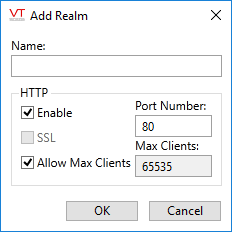
- Enter a meaningful name for the realm in the Realm Name field.
Realm names should not include spaces. Use a hyphen, underscore or mixed case to indicate word boundaries (e.g. "My-Realm", "My_Realm" or "MyRealm" ).
- Enable the HTTP protocol.
- Enter the port number that connections to the server should use.
This may vary from the port number configured in the Server Setup tab, depending on your network configuration. - Select the number of clients.
Some sites might allow all possible connections to the same realm while others divide their licensed connections between
- Click OK.
The new realm is created, and you are returned to the VTScada Thin Client / Server Setup dialog where the new realm appears in the Realm drop-down list.
- Select the VTScada application you wish to add to this realm from the Application drop-down list.
Only one application can be added to any realm.
- Click the Apply button
- Test using one of the three connection options.
- Click OK.
Your application is now available to VTScada thin clients.
Troubleshooting:
- Unable to connect.
Check that no other service is using the configured port.
If trying to connect using the server computer, ensure that the Local option is selected (done automatically). If not, it is likely that the domain is not being recognized.
If trying to connect remotely, check that the server is visible on the network. Firewall or proxy server configuration may be required.
Check that the VTScada Thin Client Server configuration was completed correctly.
Check that security is enabled in the application, and that your account has the Thin Client Access privilege.
